Employee Leave Application Guide
How to check balances, apply for leave, and understand your action plan.
1. Check Your Leave Balance
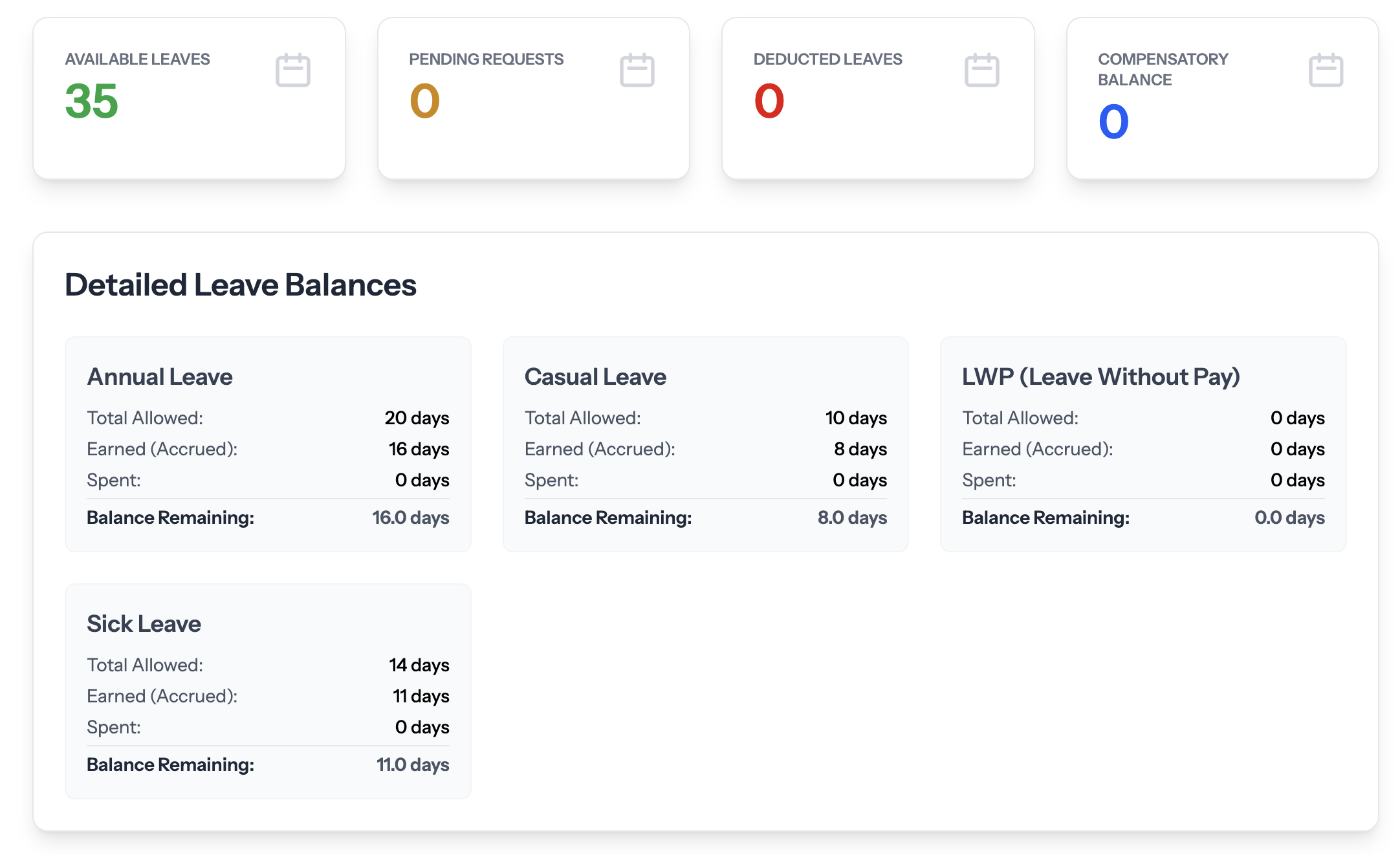
Always look here first! Your dashboard shows exactly how many days you have earned and used this year.
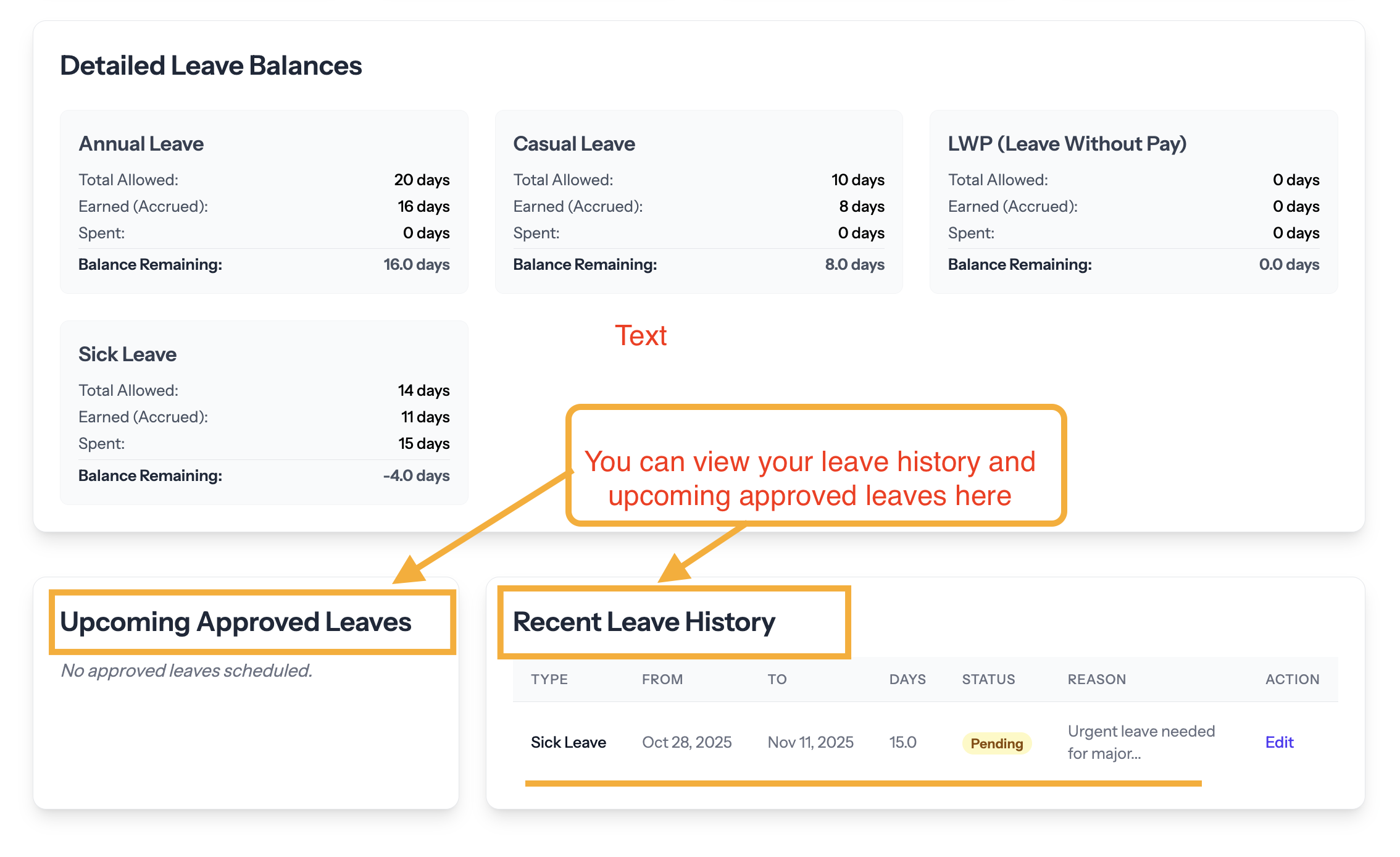
Detailed Leave Balances
Look at the Balance Remaining line for Annual, Casual, and Sick Leave to know your available days.
2. Apply for Time Off
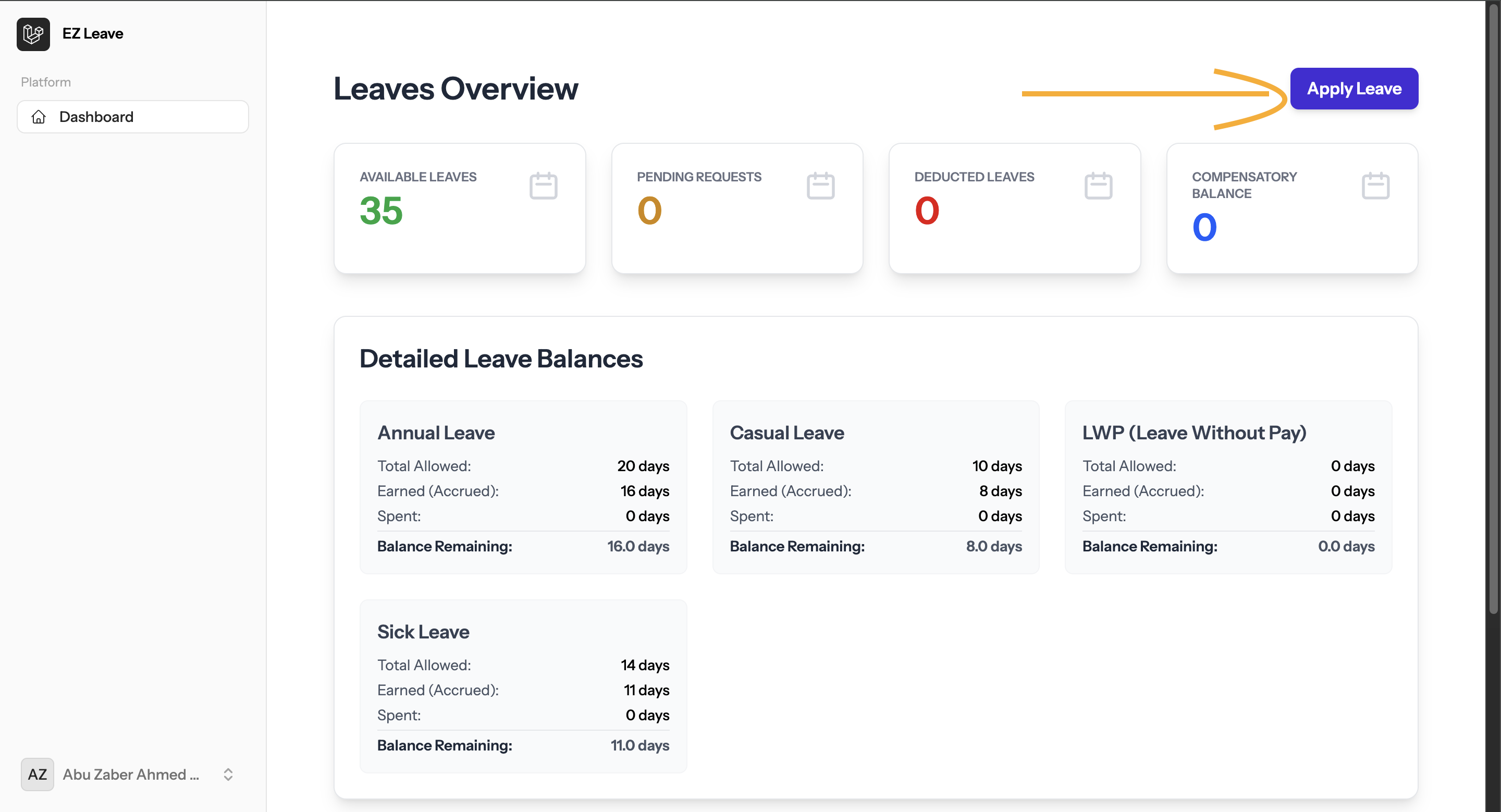
Start the Form
Click the blue "Apply Leave" button on the top right of your dashboard to open the application window.
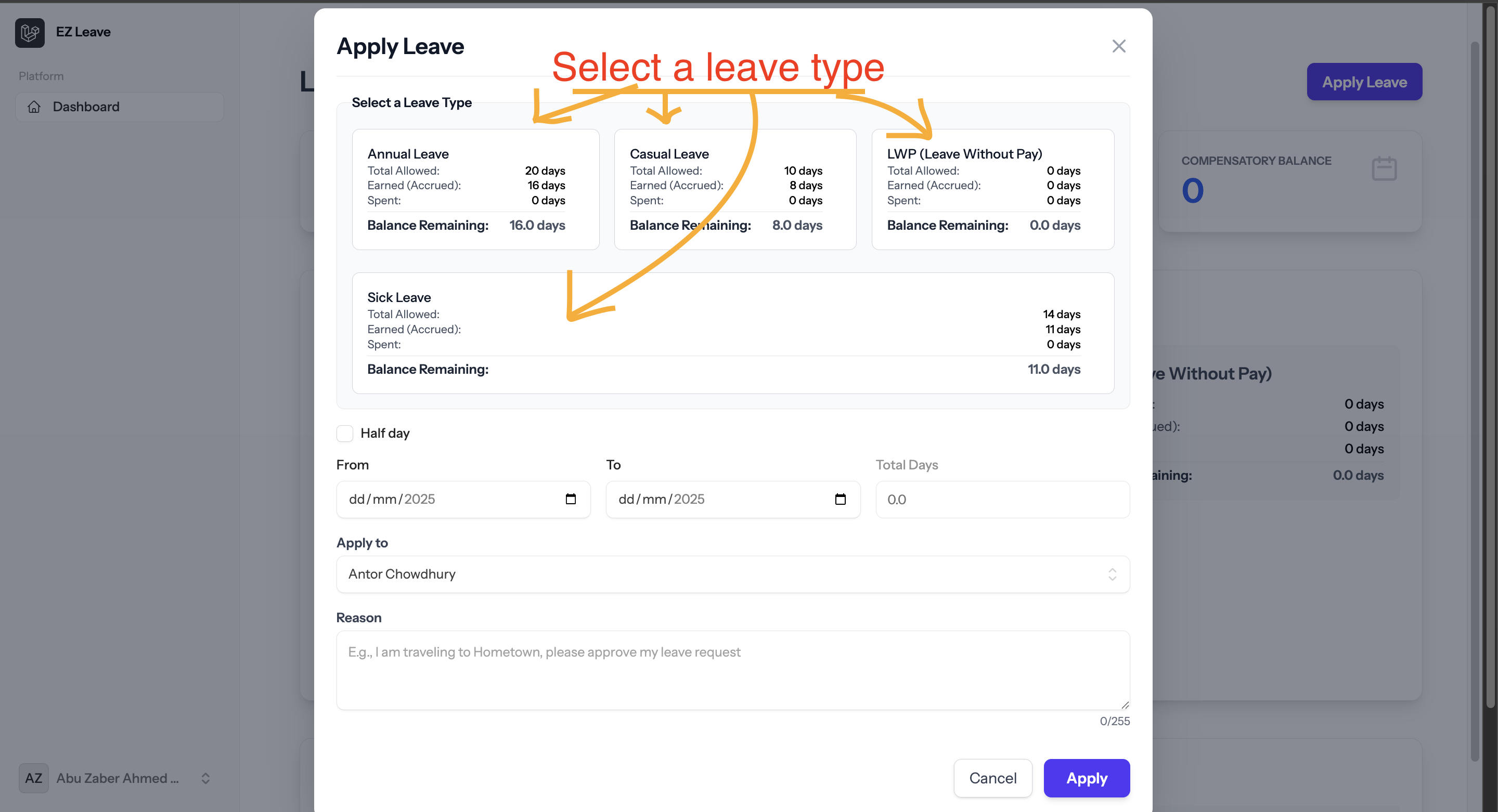
Select Leave Type and Dates
- Choose the leave type (Annual, Casual, Sick). The form automatically highlights your balance.
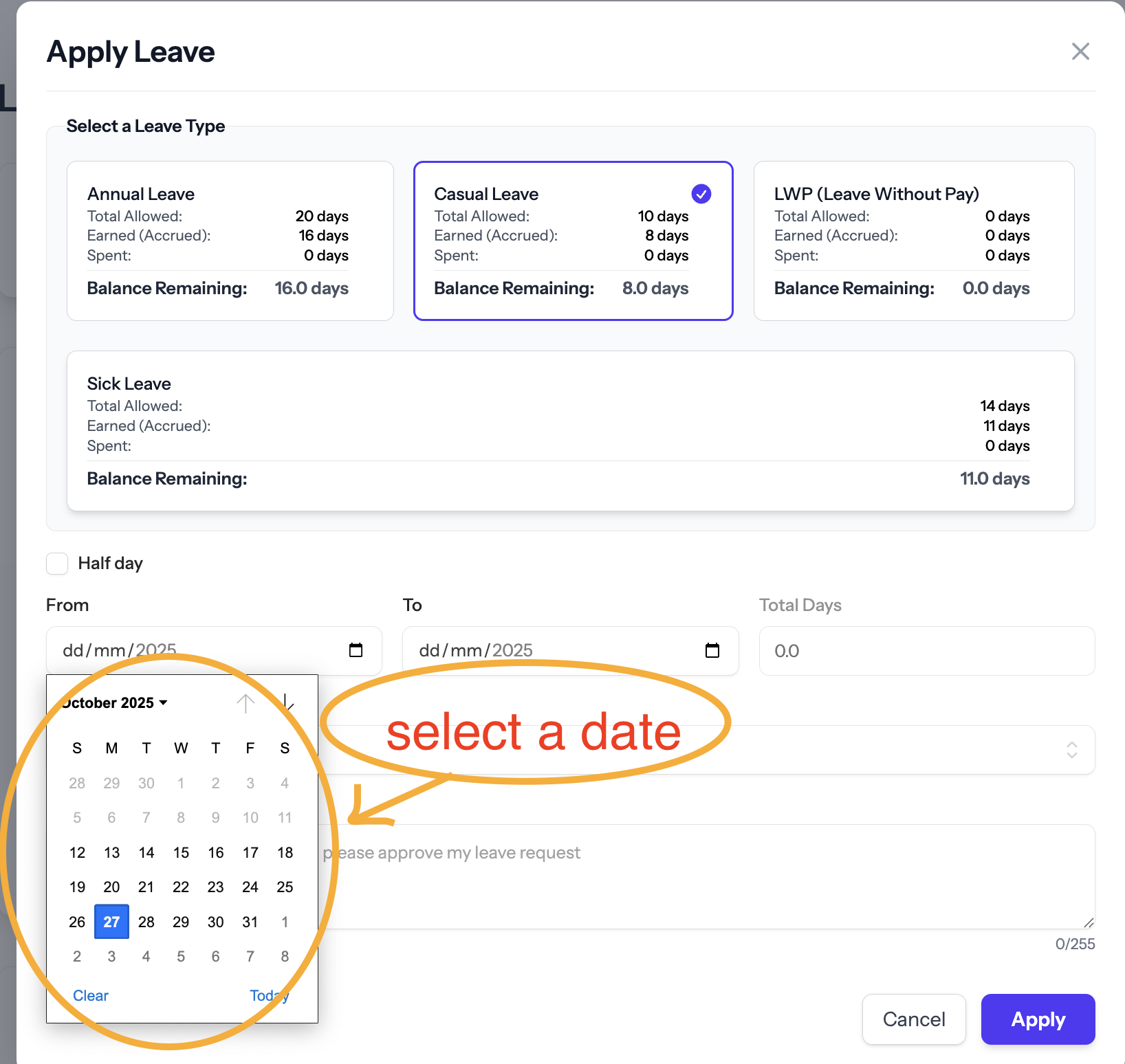
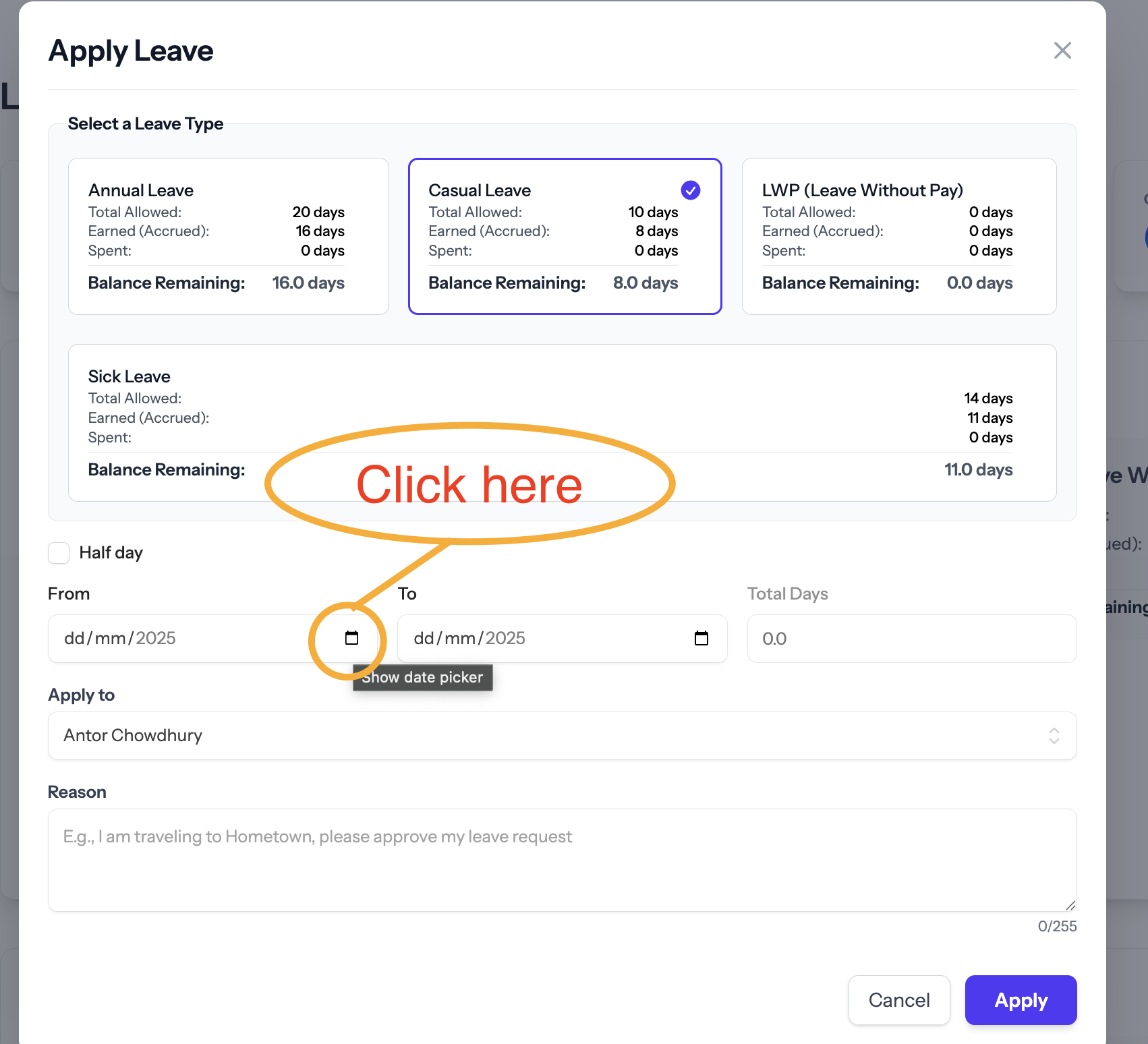
- Click the calendar icon next to From and To to select your dates. The Total Days will calculate automatically.
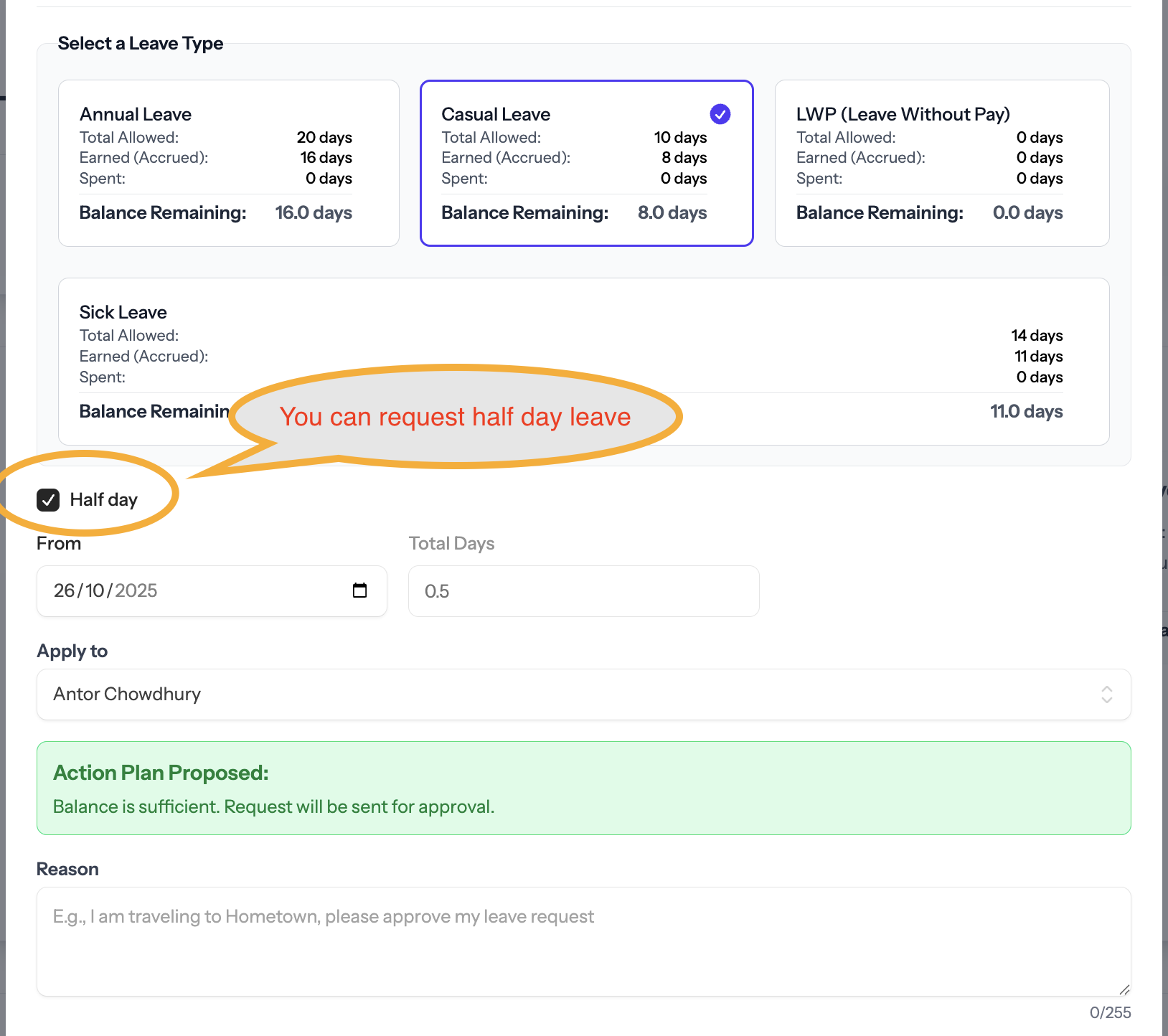
- Check Half day if you only need 0.5 days off.
CRITICAL: Review Your Action Plan
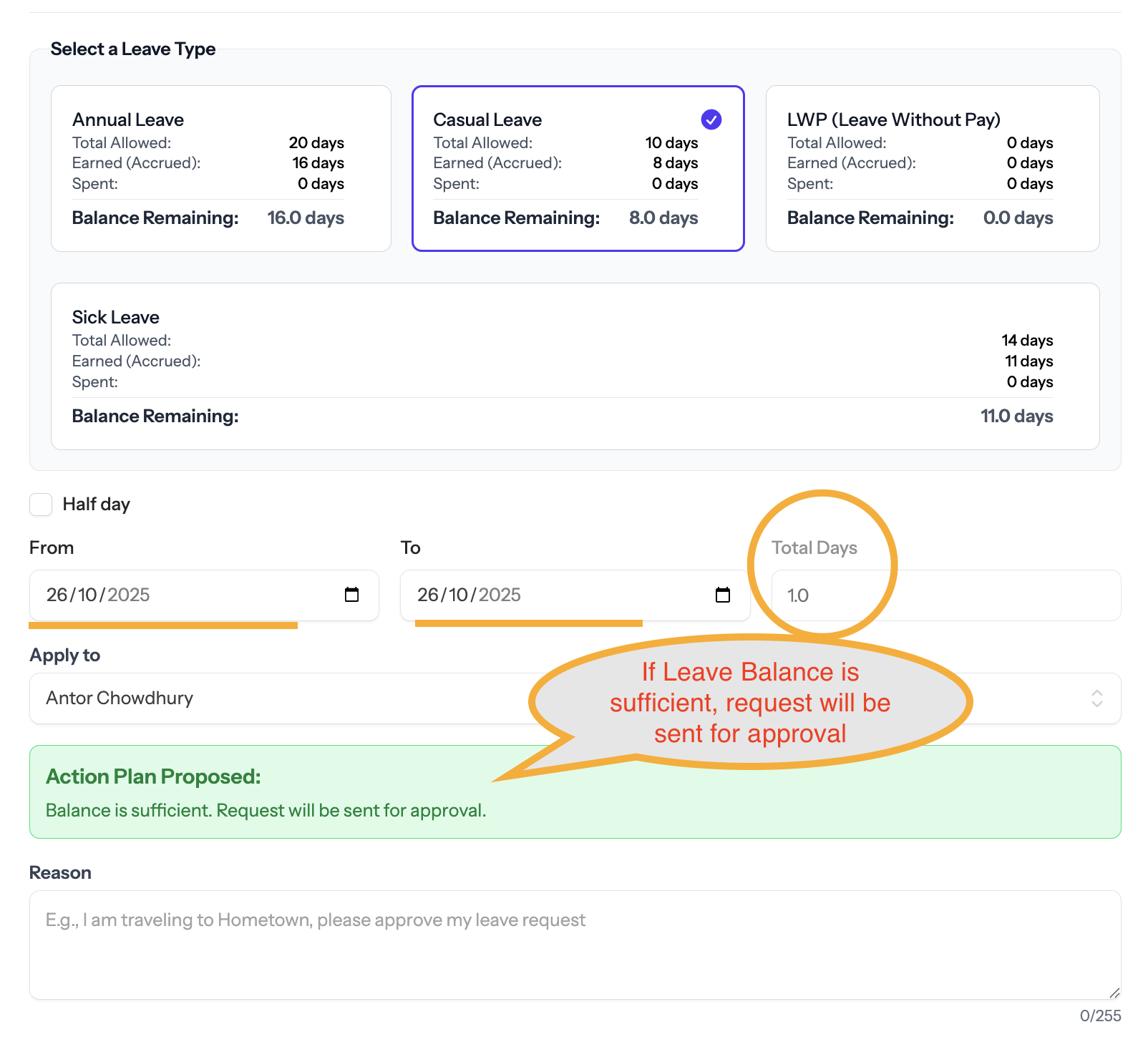
The Action Plan Proposed box shows the system's financial decision before you submit. This confirms what happens to your balance.
Green Status (Sufficient Balance):
Balance is sufficient. Request will be sent for approval.
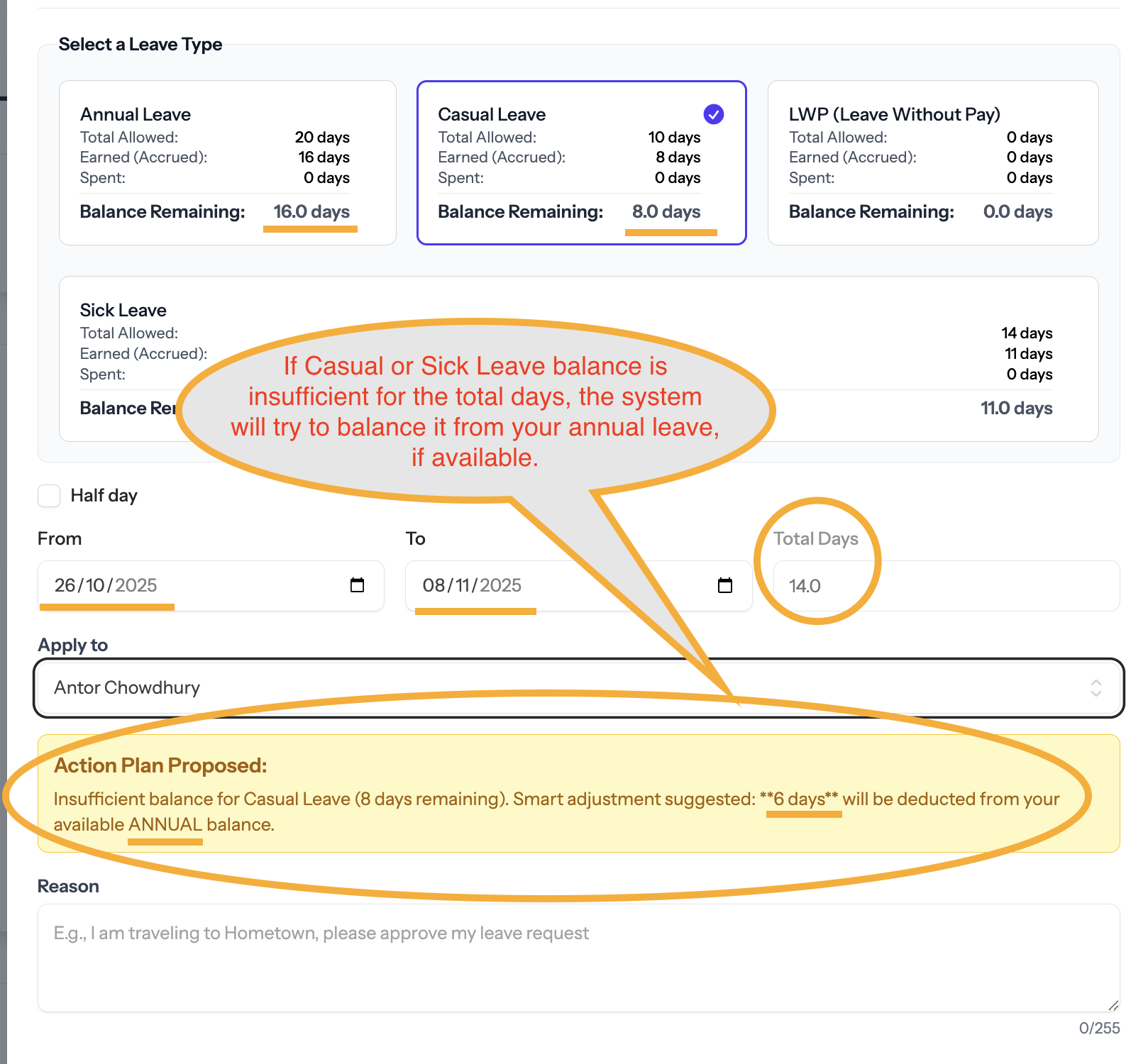
Yellow Status (Adjustment):
Balance is insufficient. The system suggests a smart adjustment by deducting days from your Available Annual Balance.
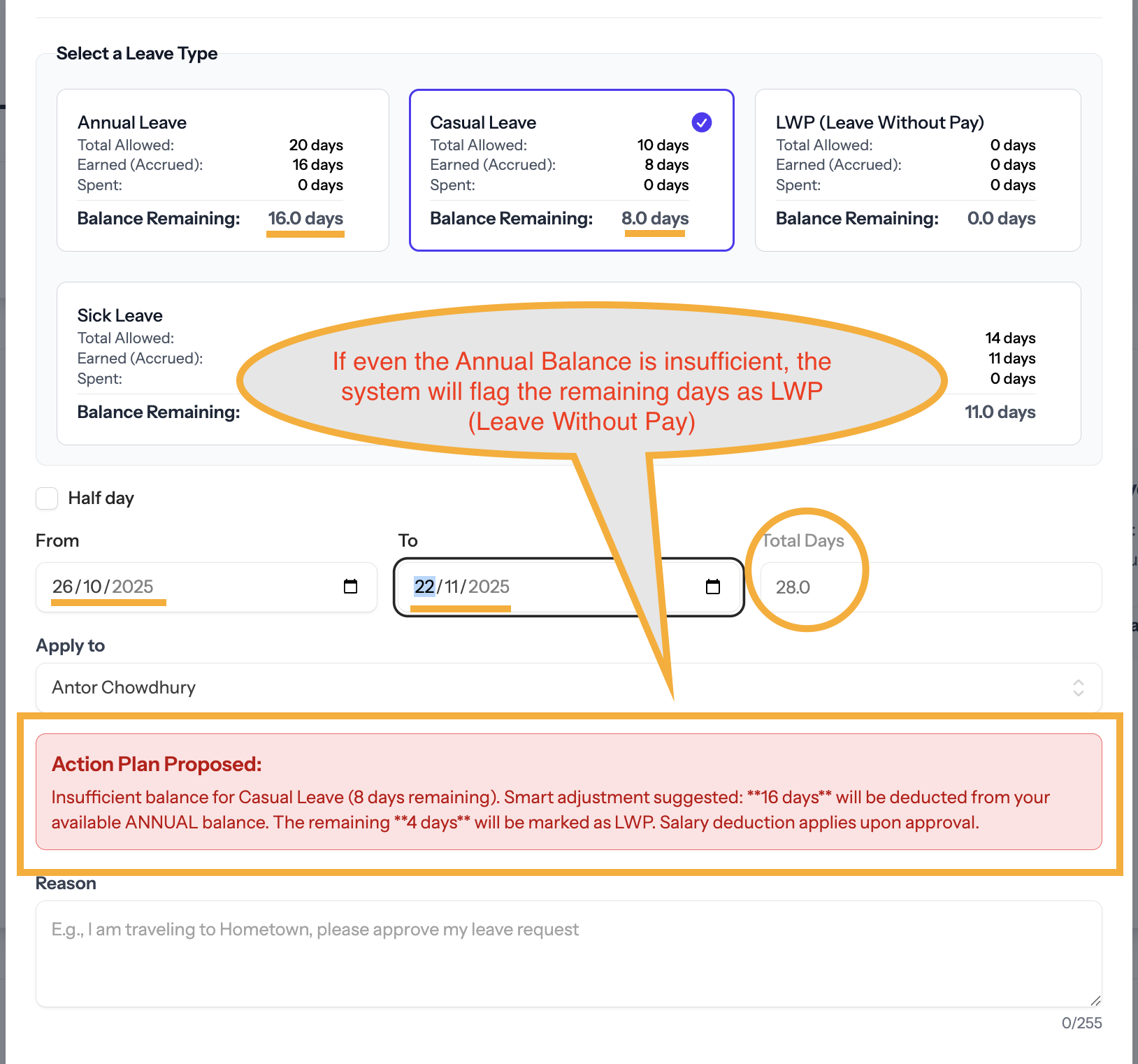
Red Status (LWP Risk):
All earned leave is exhausted. The remaining days will be marked as LWP (Leave Without Pay), and salary deduction applies.
Submit Your Request
Enter a brief note in the Reason box and click the "Apply" button to submit your request to your manager.
3. Review History
The Upcoming Approved Leaves and Recent Leave History boxes track your scheduled time off and the status of your submitted requests (Pending, Approved, Rejected). You can Edit any request that still has a Pending status.